Gaming laptops pack desktop-class performance into compact chassis, creating significant thermal management
challenges. As components push harder during intense gaming sessions, temperatures rise, potentially causing thermal
throttling that reduces performance below advertised specifications. Understanding cooling solutions helps maintain
optimal gaming performance while extending component lifespan.
The thermal design power (TDP) of modern gaming GPUs and CPUs exceeds what many laptop cooling systems can
sustainably dissipate. Even well-designed gaming laptops benefit from supplemental cooling during extended gaming
sessions. The market offers numerous cooling enhancement options, from simple laptop stands to sophisticated vacuum
cooling systems.
This comprehensive guide examines every cooling solution category for gaming laptops in 2026. We’ll evaluate
effectiveness, value proposition, and appropriate use cases for each option. Whether you’re combating overheating
issues or proactively optimizing thermal performance, you’ll find actionable guidance for your specific situation.
I. Understanding Gaming Laptop Thermal Challenges
Before exploring solutions, understanding the thermal dynamics of gaming laptops explains why cooling matters and
where intervention helps most.
Why Gaming Laptops Run Hot
Modern gaming laptops contain components consuming 100-175 watts combined (CPU + GPU) during intensive gaming. This
power converts to heat requiring dissipation through limited surface area. The physics of heat transfer impose
fundamental constraints that chassis design must accommodate.
Desktop computers spread components across larger areas with substantial airflow volume. Gaming laptops compress
similar power consumption into chassis measuring 2-3 centimeters thick. The concentrated heat generation challenges
even well-designed cooling systems.
The Impact of Thermal Throttling
When component temperatures exceed safe thresholds (typically 95-100°C for CPUs, 85-90°C for GPUs), thermal
throttling reduces clock speeds to prevent damage. This automatic protection mechanism means your gaming laptop
performs below its capability when overheating.
Symptoms of thermal throttling include:
• Sudden frame rate drops during extended gaming
• Performance declining over time within gaming sessions
• Noticeable performance recovery after cooling periods
• GPU/CPU frequencies below advertised boost clocks
Monitoring software like HWiNFO, MSI Afterburner, or manufacturer utilities can confirm whether thermal throttling
affects your system.
Ambient Temperature Influence
Room temperature directly impacts cooling effectiveness. Gaming in 30°C environments strains cooling systems more
than 20°C conditions. The temperature differential between components and ambient air determines heat dissipation
rate.
Air conditioning or simply gaming during cooler hours can meaningfully impact laptop temperatures without any
hardware modifications.
II. Laptop Cooling Pads: The Popular Choice
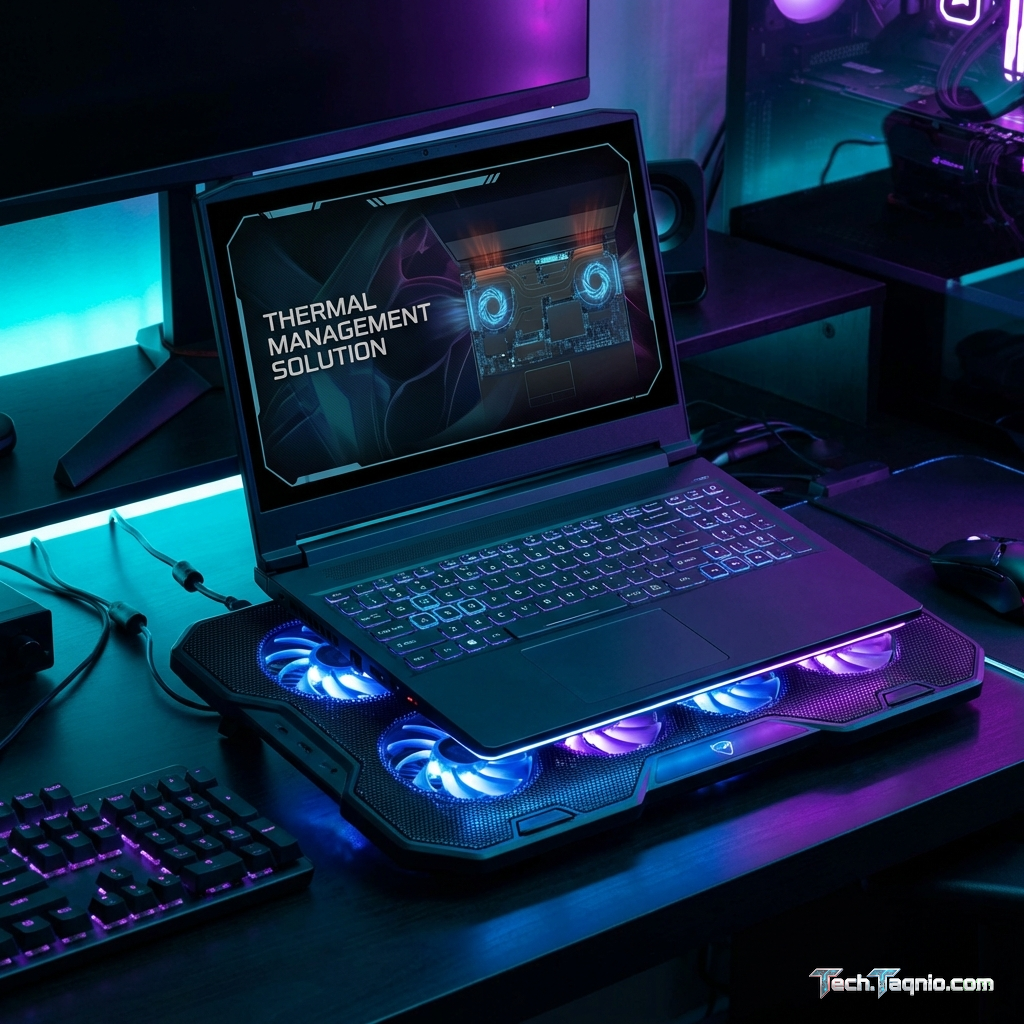
Cooling pads represent the most common external cooling solution, providing additional airflow beneath the laptop
chassis.
How Cooling Pads Work
Cooling pads position fans beneath your laptop, drawing air upward through bottom vents or creating general airflow
around the chassis. Better designs elevate the laptop, improving natural convection regardless of fan effectiveness.
Effectiveness varies dramatically between products. Quality cooling pads with properly positioned fans provide
meaningful temperature reductions. Cheap alternatives with weak fans or poor positioning offer minimal benefit
beyond simple elevation.
What to Look for in Cooling Pads
Fan Size and Speed: Larger fans (120mm+) move more air at lower noise levels than multiple small
fans. Variable speed control allows balancing cooling against noise.
Fan Positioning: Fans should align with your laptop’s intake vents. Adjustable fan positions or
multiple fan zones accommodate different laptop designs.
Build Quality: Metal mesh surfaces dissipate heat better than plastic. Sturdy construction prevents
flexing under laptop weight.
Ergonomics: Adjustable height/angle improves comfort for extended gaming. Some pads include wrist
rests or cable management.
Recommended Cooling Pads 2026
| Product | Fan Config | Temp Reduction | Price |
|---|---|---|---|
| IETS GT500 | Dual Turbine | 8-15°C | $65-80 |
| Cooler Master NotePal X3 | Single 200mm | 5-10°C | $35-45 |
| Thermaltake Massive 20 | Single 200mm | 4-8°C | $30-40 |
| TopMate C11 | 6x Quiet Fans | 3-6°C | $25-35 |
Cooling Pad Limitations
Cooling pads work by improving airflow below the laptop. Laptops with bottom-intake cooling designs benefit most.
Systems drawing air from sides or back gain less from traditional cooling pads.
Realistic expectations: quality cooling pads typically reduce temperatures 5-15°C depending on laptop design and
ambient conditions. This may not eliminate throttling in severely thermally-constrained laptops but often provides
meaningful improvement.
III. Vacuum Coolers: Aggressive Active Cooling
Vacuum coolers attach directly to laptop exhaust vents, actively pulling hot air from the cooling system.
How Vacuum Coolers Work
These devices create negative pressure at exhaust vents, accelerating hot air extraction beyond what internal fans
achieve. By reducing backpressure, vacuum coolers allow internal fans to move air more efficiently.
The direct attachment to exhaust vents makes these devices highly effective for temperature reduction, often
outperforming cooling pads significantly.
Vacuum Cooler Advantages
Superior Effectiveness: Well-designed vacuum coolers can reduce temperatures 10-20°C, more than most
cooling pads achieve.
Compact Size: Small devices attach directly to laptops, remaining portable for travel.
Universal Compatibility: Adjustable attachments fit various exhaust vent sizes and configurations.
Vacuum Cooler Disadvantages
Noise: High-speed fans in compact enclosures generate noticeable noise. Some users find the sound
intrusive.
Single Point Cooling: Only assists exhaust flow from one vent. Laptops with multiple exhaust points
may need multiple units or alternative solutions.
Attachment Concerns: Repeated attachment/removal can stress exhaust vent areas on some laptop
designs.
Popular Vacuum Coolers
OPOLAR LC06: Widely recommended for its balance of performance and noise. Temperature reductions of
10-18°C reported in testing. Price: $25-35.
KLIM Cool+: European brand with quality construction and effective cooling. Similar performance to
OPOLAR with marginally quieter operation. Price: $30-40.
IV. Laptop Stands: Simple but Effective
Before investing in powered cooling solutions, simple laptop stands often provide surprisingly meaningful improvement
through basic physics.
Why Elevation Helps
Raising the laptop chassis increases clearance beneath intake vents, improving natural airflow. Even without fans,
the increased air gap allows better convection and reduces heat reflection from desk surfaces.
Many users place laptops on flat desks, partially blocking bottom vents. Simple elevation eliminates this obstruction
while improving ergonomics for keyboard use.
Stand vs. Cooling Pad Trade-offs
Laptop stands without fans cost less, operate silently, and require no power. Temperature improvements of 3-8°C are
achievable through elevation alone. For moderately thermally-challenged laptops, stands may provide sufficient
improvement without cooling pad complexity.
Cooling pads make sense when elevation alone proves insufficient. The fans provide additional active cooling beyond
what passive airflow achieves.
Recommended Laptop Stands
Rain Design mStand: Premium aluminum construction with excellent elevation. Heat dissipation through
metal surface. Price: $45-55.
UGREEN Laptop Stand: Adjustable aluminum with multiple height settings. Good balance of features and
value. Price: $25-35.
Amazon Basics Ventilated Stand: Budget option with adequate elevation and ventilation. Price:
$15-20.
V. Undervolting: Free Performance Optimization
Undervolting reduces power consumption and heat generation without sacrificing performance—the only truly “free”
cooling improvement available.
What Is Undervolting?
Processors request more voltage than they actually need as safety margin. Undervolting reduces this voltage while
maintaining stable operation. Lower voltage means less power consumed and less heat generated.
Properly implemented undervolting maintains identical performance (sometimes higher due to reduced throttling) while
decreasing temperatures 5-15°C. The improvement costs nothing beyond time investment.
Undervolting Methods
Intel XTU (Extreme Tuning Utility): Intel’s official utility for processor undervolting.
User-friendly interface with stability testing. Available for compatible Intel processors.
ThrottleStop: Advanced utility offering more control than XTU. Requires more learning but provides
superior flexibility.
AMD Ryzen Controller: Third-party solution for AMD processor undervolting. Less standardized than
Intel options but increasingly effective.
Undervolting Considerations
Stability Testing: Aggressive undervolting causes crashes. Gradual reduction with stability testing
between adjustments identifies safe limits.
Warranty Implications: Undervolting technically voids warranties on some systems. Reversibility
makes detection unlikely, but understand the risk.
System Variability: Safe undervolt limits vary between individual chips even of identical models.
Your results may differ from guides.
VI. Thermal Paste Replacement
Factory thermal paste quality varies significantly. Replacing thermal compound can meaningfully improve heat transfer
from CPUs and GPUs to cooling systems.
When to Consider Repasting
Age: Thermal paste degrades over time. Laptops 2-3+ years old often benefit from fresh thermal
compound.
Poor Factory Application: Some manufacturers use inadequate thermal paste or apply it poorly.
Premium replacement pastes can improve even new laptops.
After Other Solutions Fail: If external cooling proves insufficient, internal thermal improvements
become necessary.
Thermal Paste Quality Tiers
| Product | Thermal Conductivity | Ease of Use | Price |
|---|---|---|---|
| Thermal Grizzly Kryonaut | 12.5 W/mK | Excellent | $12-15 |
| Noctua NT-H2 | ~9 W/mK | Excellent | $10-13 |
| Arctic MX-5 | ~8.5 W/mK | Good | $8-12 |
| Conductonaut (Liquid Metal) | 73 W/mK | Difficult | $15-20 |
Liquid Metal Considerations
Liquid metal thermal compounds offer dramatically superior thermal conductivity but carry significant risks.
Electrical conductivity means spills cause short circuits. Incompatibility with aluminum heatsinks causes corrosion.
Application difficulty increases damage risk.
Liquid metal suits experienced users seeking maximum thermal improvement. Most users achieve sufficient results with
high-quality traditional pastes like Thermal Grizzly Kryonaut without liquid metal risks.
DIY vs. Professional Repasting
Laptop disassembly requires care and appropriate tools. Improper handling damages ribbon cables, breaks plastic
clips, and voids warranties. Users comfortable with electronics can follow guide videos, but nervous users may
prefer professional service.
Professional repasting typically costs $50-100 at computer repair shops. This includes quality thermal paste and
experienced application, often worthwhile compared to DIY risks.
VII. Environmental Optimizations
Beyond hardware solutions, environmental factors significantly impact laptop cooling effectiveness.
Surface Selection
Hard, flat surfaces allow optimal airflow beneath laptops. Soft surfaces like beds, couches, or laps block vents and
trap heat. Using laptops on proper surfaces costs nothing while meaningfully improving cooling.
Ambient Temperature Management
Air conditioning makes meaningful differences during hot weather. Gaming during cooler evening hours reduces thermal
stress. These behavioral adjustments complement hardware cooling solutions.
Dust Management
Dust accumulation in vents and heatsinks degrades cooling effectiveness over time. Regular compressed air cleaning
maintains cooling system efficiency. Annual internal cleaning (if comfortable with disassembly) removes accumulated
dust from heatsinks and fans.
VIII. Combining Cooling Solutions
Optimal cooling often involves combining multiple approaches for cumulative benefit.
Recommended Combination Strategy
Baseline: Proper laptop stand or cooling pad for consistent elevation and airflow improvement.
Software: Undervolting investigation for free performance/thermal improvement.
Intensive Gaming: Vacuum cooler for sessions demanding maximum cooling beyond baseline solutions.
Long-term: Thermal paste replacement every 2-3 years for maintained optimal heat transfer.
Solution Stacking Effectiveness
Each solution addresses different aspects of thermal management. Cooling pads improve intake airflow. Vacuum coolers
improve exhaust efficiency. Undervolting reduces heat generation. Thermal paste improves heat transfer. Combined
approaches stack their individual benefits.
IX. When Cooling Solutions Aren’t Enough
Some gaming laptops are simply thermally inadequate for their specifications. When external solutions prove
insufficient, consider:
Performance Mode Adjustments
Most gaming laptops include performance profiles trading maximum performance for reduced heat generation. “Balanced”
or “Quiet” modes reduce power limits, lowering both performance and temperatures. Accepting slightly lower frame
rates may eliminate throttling while maintaining playable experiences.
Frame Rate Limiting
Capping frame rates below maximum GPU capability reduces power consumption and heat generation. If your GPU
consistently exceeds monitor refresh rate, limiting frames to match refresh rate reduces unnecessary heat.
Upgrade Consideration
Fundamentally thermally-limited laptops may require replacement rather than cooling augmentation. Better-designed
models with superior cooling handle identical specifications without overheating. Research thermal performance
before future purchases.
X. Conclusion
Gaming laptop cooling solutions range from simple elevation through sophisticated liquid metal applications. The
appropriate solution depends on your specific thermal challenges, budget, and comfort with technical procedures.
Start with free solutions: proper surfaces, undervolting investigation, and dust cleaning. If insufficient, quality
cooling pads or vacuum coolers provide meaningful improvement at reasonable cost. Thermal paste replacement
addresses internal heat transfer for laptops with degraded compounds.
Combine solutions strategically rather than expecting single products to solve all thermal challenges. Understanding
how each approach contributes to overall thermal management enables efficient investment in what actually helps your
specific situation.
Monitor temperatures before and after implementing solutions to verify effectiveness. The goal is sustained
performance without thermal throttling—achieving this goal matters more than pursuing lowest possible temperatures.
For related guidance on gaming laptop selection and performance, explore our articles on how to choose the
right gaming laptop and best budget gaming laptops
under $1000.