Adaptive sync technology has revolutionized gaming displays by eliminating screen tearing and stuttering without the
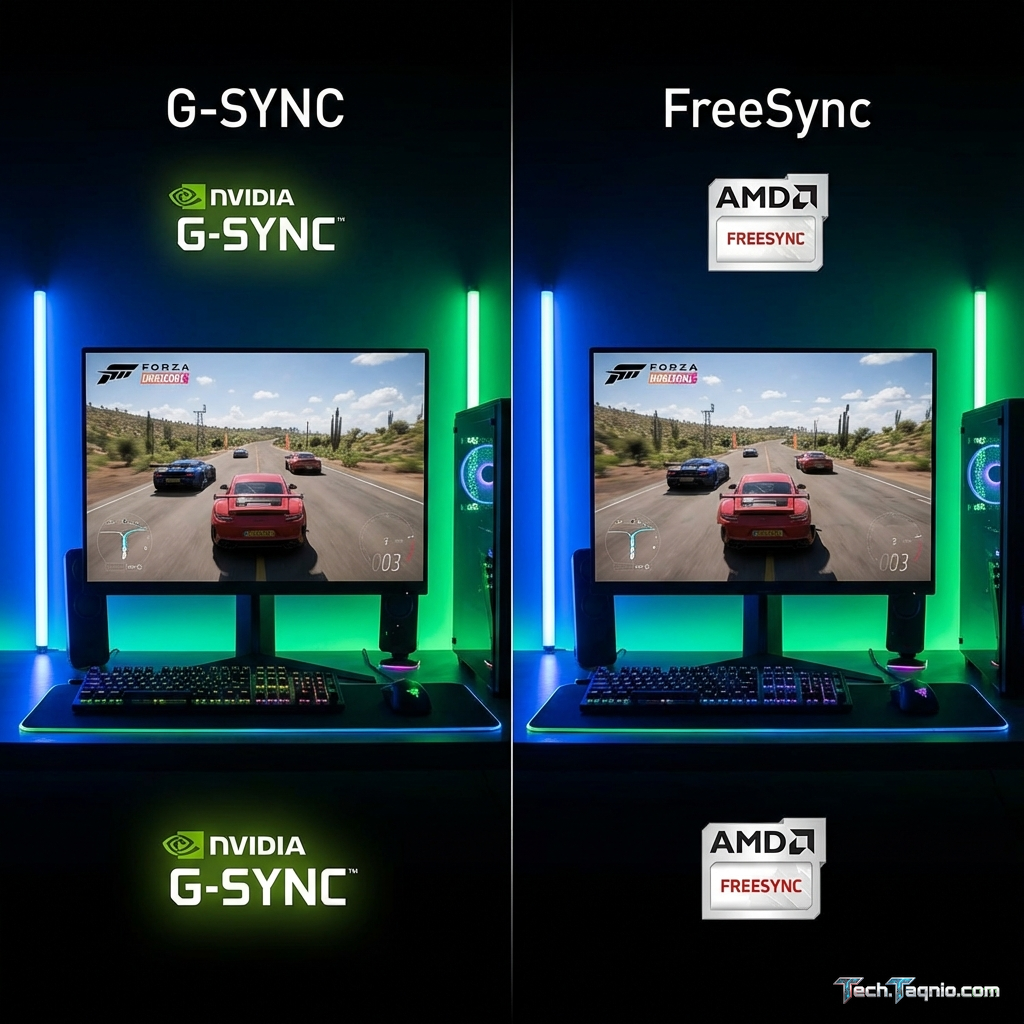
input lag penalties of traditional V-Sync. The two dominant standards—NVIDIA’s G-Sync and AMD’s FreeSync—achieve
similar goals through different implementations. Understanding these technologies helps navigate monitor selection
and maximize gaming smoothness.
The adaptive sync landscape has evolved significantly. What began as competing proprietary standards has converged
toward broad compatibility. Modern gamers can often use either technology regardless of GPU brand, though important
distinctions remain in implementation quality and feature sets.
This comprehensive guide explains adaptive sync fundamentals, compares G-Sync and FreeSync implementations, and helps
you understand which technology best serves your gaming needs in 2026.
I. Understanding Adaptive Sync Fundamentals
Before comparing implementations, understanding why adaptive sync matters clarifies its value.
The Screen Tearing Problem
Traditional displays refresh at fixed intervals (60Hz = 60 times per second). GPUs render frames at variable rates
depending on scene complexity. When these rates misalign, partial frames display simultaneously—a visible horizontal
line called “screen tearing.”
Tearing disrupts visual quality and immersion. Fast-paced games with fluctuating frame rates experience frequent
tearing events, degrading the gaming experience.
Traditional V-Sync Limitations
V-Sync forces synchronization by delaying frames until display refresh. This eliminates tearing but introduces
problems:
Input Lag: Frame delay adds perceptible input response time, disadvantaging competitive gaming.
Stuttering: When frame rates drop below refresh rate, frames must wait for the next refresh cycle,
creating noticeable stutters.
Performance Impact: Holding frames reduces effective performance, particularly near refresh rate
boundaries.
Adaptive Sync Solution
Adaptive sync reverses the synchronization approach—instead of GPU waiting for display, the display adjusts its
refresh rate to match GPU output. This eliminates tearing without the latency penalties of V-Sync.
When the GPU renders a frame, the display immediately shows it. The variable refresh rate adapts continuously to
match actual performance, providing smooth gameplay across fluctuating frame rates.
II. G-Sync Technology Explained
NVIDIA developed G-Sync as the first gaming-focused adaptive sync implementation, establishing the technology
category.
G-Sync Hardware Module
Original G-Sync monitors contain proprietary NVIDIA hardware modules replacing standard monitor scalers. This
dedicated hardware provides:
Variable Overdrive: Response time optimization adjusted per-frame for current refresh rate,
maintaining motion clarity across the VRR range.
Wide VRR Range: Typically 1Hz to maximum refresh rate, enabling smooth performance even at very low
frame rates.
Consistent Quality: Hardware certification ensures uniform implementation quality across all G-Sync
monitors.
G-Sync Ultimate
G-Sync Ultimate certification adds HDR requirements including 1000+ nits peak brightness, wide color gamut, and
full-array local dimming. These monitors represent the premium tier of the G-Sync ecosystem.
G-Sync Compatible
NVIDIA’s “G-Sync Compatible” certification validates FreeSync monitors that meet quality standards when used with
NVIDIA GPUs. This program dramatically expanded compatible monitor options without requiring G-Sync hardware
modules.
G-Sync Compatible monitors work identically to native G-Sync for most users, typically with narrower VRR ranges
(48-144Hz instead of 1-144Hz being common).
G-Sync Pricing Impact
The hardware module adds $100-200 to monitor pricing compared to equivalent FreeSync models. This premium funds the
proprietary technology and NVIDIA’s certification program.
III. FreeSync Technology Explained
AMD’s FreeSync builds on the open VESA Adaptive Sync standard, providing adaptive sync without proprietary hardware
requirements.
FreeSync Implementation
FreeSync uses monitor scalers supporting the Adaptive Sync standard included in DisplayPort 1.2a and HDMI 2.1. No
dedicated hardware module is required, reducing manufacturing costs and end-user pricing.
Implementation quality varies more widely than G-Sync due to less stringent certification requirements. Quality
ranges from excellent to problematic depending on specific monitor implementation.
FreeSync Tiers
FreeSync (Basic): Baseline certification requiring only functional VRR. VRR range, low framerate
compensation, and other quality factors are not specified.
FreeSync Premium: Requires minimum 120Hz refresh rate and Low Framerate Compensation (LFC). LFC
multiplies frames below VRR minimum to maintain smoothness—critical for demanding games that occasionally drop below
48-60 FPS.
FreeSync Premium Pro: Adds HDR requirements including tone mapping and color accuracy standards. The
premium tier targeting high-end gaming experiences.
FreeSync Cost Advantage
Without proprietary hardware costs, FreeSync monitors typically cost 15-25% less than equivalent G-Sync models. This
pricing accessibility drives FreeSync’s market dominance by monitor count.
IV. Feature Comparison
Comparing specific capabilities reveals meaningful differences between implementations.
VRR Range Comparison
| Technology | Typical Range | LFC Support | Notes |
|---|---|---|---|
| G-Sync (Module) | 1Hz – Max | Always | Maximum range guaranteed |
| G-Sync Compatible | 48Hz – Max typical | Usually | Validated FreeSync monitors |
| FreeSync Premium | 48Hz – Max typical | Required | LFC guaranteed |
| FreeSync Basic | Varies widely | Maybe | Check specific model |
Low Framerate Compensation (LFC)
LFC maintains smoothness when frame rates drop below VRR minimum by displaying frames multiple times. Without LFC,
dropping below VRR minimum reverts to V-Sync behavior with associated stuttering.
Hardware G-Sync modules include LFC universally. FreeSync Premium and most G-Sync Compatible monitors include LFC,
but basic FreeSync monitors may lack it.
Variable Overdrive
Response time optimization (overdrive) must adapt to changing refresh rates for optimal motion clarity. Hardware
G-Sync modules adjust overdrive per-frame automatically.
FreeSync monitors implement variable overdrive inconsistently. Quality implementations match G-Sync; others use fixed
overdrive causing artifacts at certain refresh rates.
Brightness Flickering
Some adaptive sync implementations cause visible brightness flickering during VRR operation, particularly at lower
frame rates. Hardware G-Sync modules are designed to prevent this; FreeSync monitors occasionally exhibit
flickering.
V. GPU Compatibility
Understanding which GPUs work with which monitors prevents compatibility surprises.
NVIDIA GPU Compatibility
NVIDIA GPUs (GTX 10 series and newer) support:
Full G-Sync: All hardware G-Sync and G-Sync Ultimate monitors
G-Sync Compatible: All NVIDIA-validated FreeSync monitors
Non-Validated FreeSync: Most FreeSync monitors work when manually enabled in NVIDIA Control Panel
NVIDIA’s broad compatibility means most modern monitors work with NVIDIA GPUs regardless of branding.
AMD GPU Compatibility
AMD GPUs support:
All FreeSync Monitors: Full compatibility across all FreeSync tiers
Hardware G-Sync: NOT compatible—proprietary NVIDIA hardware
VESA Adaptive Sync: Any monitor supporting the open standard
AMD GPUs cannot use hardware G-Sync monitors, though such monitors increasingly include FreeSync support as well.
Practical Compatibility Today
Most gaming monitors in 2026 work with both AMD and NVIDIA GPUs through:
• FreeSync + G-Sync Compatible dual certification
• VESA Adaptive Sync as baseline common standard
• Manufacturer firmware enabling broad compatibility
Pure hardware G-Sync monitors (no FreeSync) are increasingly rare, typically found only in older or very high-end
models.
VI. Which Should You Choose?
Decision factors depend on your GPU, budget, and quality priorities.
For NVIDIA GPU Owners
Budget Priority: FreeSync Premium monitors offer excellent VRR at lower cost. G-Sync Compatible
ensures NVIDIA validation.
Quality Priority: Hardware G-Sync provides guaranteed VRR implementation quality. G-Sync Ultimate
for HDR gaming.
Practical Recommendation: G-Sync Compatible FreeSync Premium monitors provide excellent value for
most NVIDIA users. Full G-Sync hardware only for enthusiasts prioritizing absolute VRR quality.
For AMD GPU Owners
All Tiers: FreeSync monitors are your only adaptive sync option—G-Sync hardware won’t work.
Quality Priority: FreeSync Premium or Premium Pro ensures LFC and quality standards.
Practical Recommendation: FreeSync Premium represents the sweet spot. Premium Pro for HDR-focused
gaming.
For Future GPU Flexibility
If you might switch between AMD and NVIDIA GPUs:
Recommended: FreeSync monitors with G-Sync Compatible certification work with both brands.
Avoid: Pure hardware G-Sync monitors (if you might switch to AMD)
VII. Enabling Adaptive Sync
Proper configuration ensures optimal adaptive sync operation.
NVIDIA Setup
1. Connect via DisplayPort (preferred) or HDMI 2.1+
2. Open NVIDIA Control Panel → Display → Set up G-SYNC
3. Enable “Enable G-SYNC, G-SYNC Compatible”
4. Select “Enable for full screen mode” (or windowed if preferred)
5. Apply settings
For non-validated FreeSync monitors, check “Enable settings for the selected display model” to force VRR activation.
AMD Setup
1. Connect via DisplayPort or HDMI (version depends on monitor)
2. Open AMD Software: Adrenalin Edition → Gaming → Display
3. Enable “AMD FreeSync”
4. Verify “FreeSync” shows as enabled on the monitor’s status
In-Game Settings
Disable V-Sync in games when using adaptive sync. Enable frame rate limiting slightly below monitor maximum (e.g.,
141 FPS for 144Hz) to avoid VRR ceiling issues.
VIII. Troubleshooting Common Issues
Adaptive sync problems typically have straightforward solutions.
Flickering During VRR
• Ensure you’re using DisplayPort, not HDMI (unless HDMI 2.1 with VRR support)
• Update monitor firmware if available
• Adjust VRR range in monitor OSD if options exist
• Frame cap above VRR minimum to avoid low-FPS flickering
VRR Not Activating
• Verify cable supports required bandwidth
• Check monitor OSD that VRR/FreeSync/Adaptive Sync is enabled
• Update GPU drivers
• For non-validated monitors on NVIDIA, manually enable in Control Panel
Stuttering Despite VRR
• Check frame rate isn’t dropping below VRR minimum without LFC
• Verify GPU drivers are current
• Test with V-Sync off and frame cap enabled
• Check for frame time inconsistency indicating GPU issues
IX. Conclusion
Adaptive sync technology has matured to the point where meaningful differences between G-Sync and FreeSync have
narrowed considerably. Both technologies effectively eliminate screen tearing while maintaining low input lag—the
core promise of adaptive sync.
For most gamers, FreeSync Premium with G-Sync Compatible certification provides excellent VRR experience at
competitive pricing. Hardware G-Sync modules offer marginally superior VRR implementation for enthusiasts willing to
pay the premium. AMD users should focus on FreeSync Premium for guaranteed LFC support.
The days of strict ecosystem lock-in have largely passed. Cross-compatible monitors dominate the market, and both AMD
and NVIDIA GPUs work with most modern gaming displays. Focus on overall monitor quality—panel type, resolution,
refresh rate—rather than adaptive sync branding when making purchasing decisions.
For monitor recommendations, explore our best gaming monitors
2026 guide and panel technology
comparison.