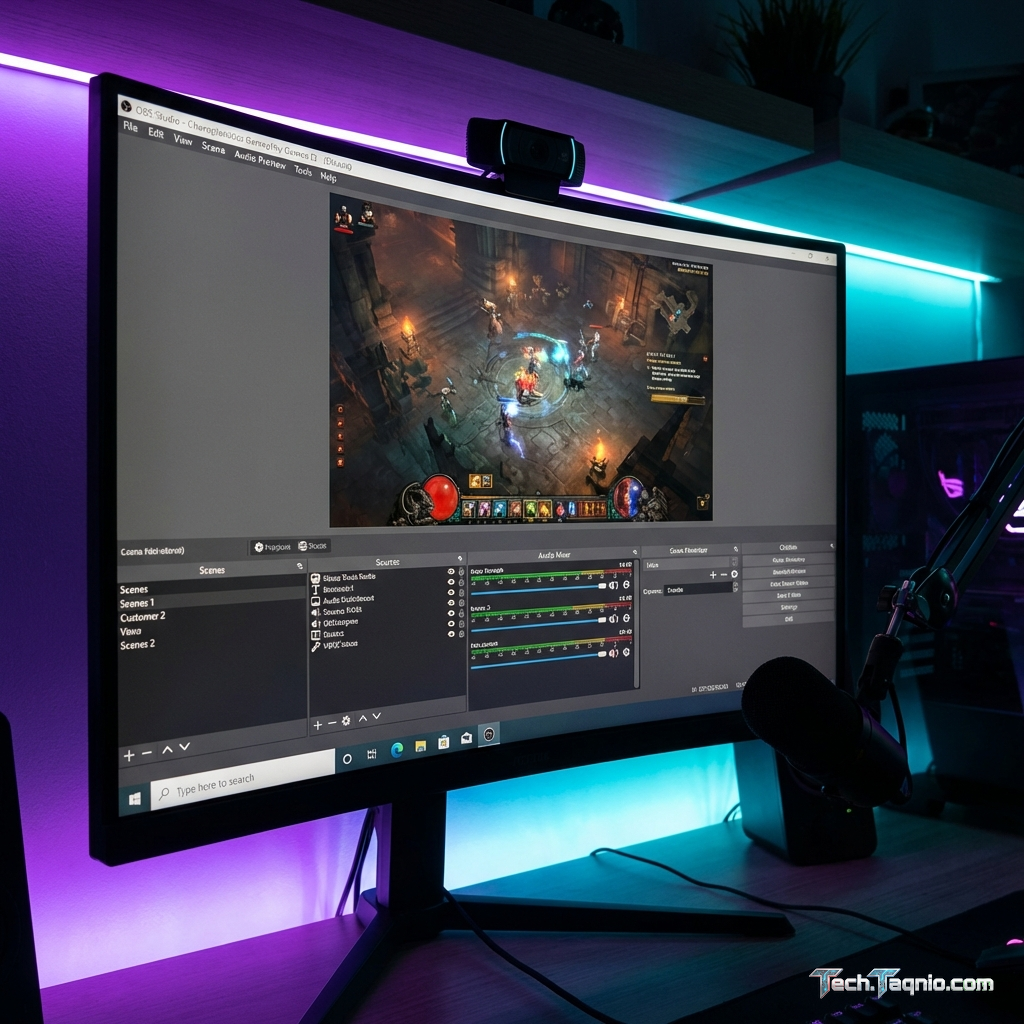
Game recording and streaming has evolved from a niche activity into a mainstream aspect of gaming culture. Whether
capturing memorable moments, creating content for YouTube, or streaming live to Twitch audiences, the right
recording software balances quality, performance impact, and ease of use. The 2026 software landscape offers
solutions ranging from simple built-in tools to professional-grade applications with extensive customization.
Choosing recording software involves understanding trade-offs between features, system resource usage, and output
quality. GPU-accelerated encoding enables high-quality recording with minimal performance impact, while CPU-based
solutions offer flexibility at higher system cost. Your specific needs—casual highlights versus professional content
creation—determine which approach serves you best.
This comprehensive guide examines the best game recording software for 2026, comparing features, performance impact,
quality output, and ease of use. We’ll help you select the optimal software for your recording and streaming
requirements.
I. Understanding Game Recording Technology
Before comparing software, understanding the technology underlying game recording helps evaluate options
appropriately.
Hardware Encoding vs Software Encoding
Hardware Encoding (GPU): Uses dedicated encoding hardware built into modern GPUs. NVIDIA’s NVENC,
AMD’s VCE/VCN, and Intel’s Quick Sync offload encoding from the CPU, providing excellent quality with minimal gaming
performance impact. Hardware encoding is preferred for most game recording scenarios.
Software Encoding (CPU): Uses CPU processing power to encode video. x264 and x265 codecs provide
superior quality per bitrate compared to hardware encoders but consume significant CPU resources. Software encoding
suits systems with powerful CPUs and headroom for encoding alongside gaming.
Most gamers should prioritize hardware encoding through NVENC, VCN, or Quick Sync. The quality difference versus
software encoding is minimal at typical recording bitrates, while performance impact is dramatically lower.
Common Video Codecs
H.264 (AVC): The standard codec for game recording and streaming. Universal playback support, good
quality-to-size ratio, well-optimized hardware encoders. Recommended for most use cases.
H.265 (HEVC): Better compression than H.264 (smaller files at similar quality) but slower encoding
and less universal playback support. Good for archival recording where file size matters.
AV1: Emerging codec with excellent compression. NVIDIA RTX 40 series and Intel Arc GPUs include
hardware AV1 encoding. Best quality-to-size ratio but limited current support.
Key Recording Settings
Bitrate: Higher bitrate = larger files but better quality. For 1080p recording, 20-50 Mbps provides
good quality. For 4K, 50-100+ Mbps. Streaming services limit bitrate (Twitch maxes at 6000 kbps for typical users).
Resolution: Match game resolution or downscale for smaller files. Recording at 1440p while playing
4K reduces file size with minimal quality loss.
Frame Rate: Record at game’s actual frame rate when possible. 60 FPS recording is standard; 120+ FPS
recording is increasingly supported for high-refresh content.
II. Best Game Recording Software
These applications represent optimal choices for different use cases and skill levels.
OBS Studio – Best Overall (Free)
OBS Studio remains the gold standard for game recording and streaming, offering professional-grade features
completely free. Open-source development ensures continued improvement without cost or feature restrictions.
The flexibility is unmatched—configure virtually any aspect of recording or streaming, from encoding settings to
complex scene layouts with multiple sources. Professional streamers and casual recorders alike find OBS capable of
meeting their needs.
Recording features include:
- Hardware encoding support (NVENC, VCN, Quick Sync)
- Software encoding (x264, x265) for maximum quality
- Configurable output formats, codecs, and containers
- Replay Buffer (instant replay saving)
- Multi-track audio for separate game/voice tracks
- Scene-based layouts for complex productions
The learning curve exceeds simpler alternatives, but abundant tutorials and community resources guide new users.
Initial configuration requires attention, but once configured, OBS operates reliably.
Pros: Completely free, maximum flexibility, regular updates, large community, professional features,
supports all major encoders.
Cons: Steeper learning curve, manual configuration required, no simplified “quick capture” mode, can
be overwhelming for beginners.
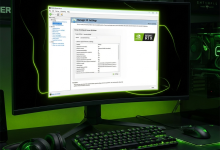
NVIDIA ShadowPlay (GeForce Experience) – Best for NVIDIA GPUs (Free)
ShadowPlay (integrated into GeForce Experience) provides effortless game recording for NVIDIA GPU users. The tight
NVENC integration delivers excellent quality with minimal performance impact—typically under 5% FPS reduction.
Instant Replay continuously records the last X minutes (configurable), allowing capture of unexpected moments without
starting recording in advance. Press a hotkey and the last 5 minutes (or your configured duration) saves to disk.
The simplified interface trades flexibility for ease of use—configure basic settings and start recording immediately.
Advanced users may find limitations frustrating, but casual users appreciate the streamlined experience.
Recording features include:
- NVENC hardware encoding (minimal performance impact)
- Instant Replay for retroactive capture
- Screenshots and photo modes
- Automatic highlight detection in supported games
- Direct upload to YouTube
- In-game overlay with FPS counter
Pros: Minimal performance impact, extremely easy to use, Instant Replay feature, included free with
NVIDIA GPUs, automatic game detection.
Cons: NVIDIA GPUs only, limited configuration options, requires GeForce Experience installation,
less flexible than OBS, occasional stability issues.
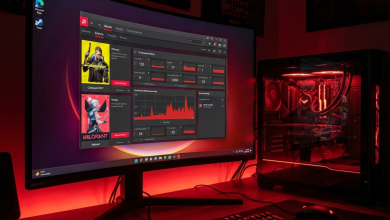
AMD ReLive/Radeon Software Recording – Best for AMD GPUs (Free)
AMD ReLive (now integrated into Radeon Software) provides similar functionality to ShadowPlay for AMD GPU users.
Hardware encoding through VCN/VCE delivers good quality with minimal performance impact.
Instant Replay functionality captures recent gameplay on demand. The integration with AMD Radeon Software means
recording features are available without additional software installation.
Recording features include:
- AMD VCN/VCE hardware encoding
- Instant Replay for retroactive capture
- Scene Editor for overlays and webcam integration
- GIF capture from recorded content
- Streaming integration
Pros: Free with AMD drivers, minimal setup, low performance impact, Instant Replay, integrated with
Radeon Software.
Cons: AMD GPUs only, limited advanced features, occasional quality inconsistency, fewer
configuration options than OBS.
Xbox Game Bar – Best for Simplicity (Built into Windows)
Xbox Game Bar provides basic recording already installed on Windows 10/11 systems. For users wanting occasional
captures without installing additional software, Game Bar works adequately.
The simplicity makes Game Bar ideal for quick captures and screenshots—press Win+G to open overlay, click record.
However, quality and flexibility lag behind dedicated software.
Recording features include:
- Background recording for instant replay
- Screenshot capture
- Performance monitoring overlay
- Basic audio controls
Pros: Already installed, extremely simple, no additional software required, works immediately.
Cons: Limited quality options, higher performance impact than alternatives, basic features only,
limited game compatibility.
Streamlabs Desktop – Best for Streaming Beginners
Streamlabs Desktop wraps OBS functionality in a more user-friendly interface with integrated alerts, overlays, and
widgets. The streamlined setup process guides new streamers through configuration.
The all-in-one approach includes features that require separate downloads/configurations in OBS: alert systems, chat
integration, donation widgets, and themed overlay packages. For streaming-focused users, this integration provides
significant convenience.
Recording features include:
- All OBS encoders and features (built on OBS)
- Simplified interface and setup wizards
- Integrated alerts and widgets
- App store for extensions
- Cloud backup for settings
Pros: Easier than OBS for beginners, integrated streaming features, themed overlays included,
simplified setup.
Cons: Higher resource usage than OBS, some premium features require subscription, occasional
performance issues, Windows only.
III. Software Comparison Table
| Software | Price | Performance Impact | Best For |
|---|---|---|---|
| OBS Studio | Free | Low (NVENC) | Maximum flexibility |
| NVIDIA ShadowPlay | Free | Very Low | Easy NVIDIA recording |
| AMD ReLive | Free | Low | Easy AMD recording |
| Xbox Game Bar | Free (Built-in) | Medium | Quick casual captures |
| Streamlabs Desktop | Free/$19/mo Pro | Low-Medium | Beginner streaming |
IV. OBS Studio Configuration Guide
For users choosing OBS Studio, proper configuration ensures optimal results.
Initial Setup
OBS includes an Auto-Configuration Wizard that tests your system and suggests settings:
- Launch OBS Studio
- When prompted, select “Optimize for recording”
- Complete the wizard following prompts
- Test recording and adjust settings as needed
The wizard provides reasonable starting points, but manual optimization yields better results for specific needs.
Optimal Recording Settings
Access: Settings → Output → Recording
For NVIDIA GPUs:
- Recording Format: mkv (safer than mp4 for crashes)
- Encoder: NVIDIA NVENC H.264
- Rate Control: CQP (quality-based)
- CQ Level: 18-20 (lower = higher quality, larger files)
- Preset: Quality or Max Quality
- Profile: High
For AMD GPUs:
- Encoder: AMD HW H.264
- Rate Control: CQP
- CQ Level: 18-20
- Preset: Quality
Replay Buffer Configuration
Replay Buffer enables Instant Replay functionality similar to ShadowPlay:
- Settings → Output → Replay Buffer
- Enable “Replay Buffer”
- Set maximum replay time (5-60 seconds typical)
- Settings → Hotkeys → Set “Save Replay” hotkey
- Start Replay Buffer from main OBS window
When something worth saving happens, press your hotkey to save the last X seconds of gameplay.
Game Capture Source Setup
For best quality and compatibility:
- Add Source → Game Capture
- Mode: Capture specific window (more reliable than automatic)
- Select your game from the dropdown
- Enable “Capture Cursor” if desired
- Disable if experiencing compatibility issues: “Allow transparency”
V. ShadowPlay Configuration Guide
For NVIDIA users preferring ShadowPlay’s simplicity, optimize these settings.
Enable ShadowPlay
- Open GeForce Experience
- Click the gear icon (Settings)
- Enable “In-Game Overlay”
- Press Alt+Z in game to access overlay
Optimal Recording Settings
Access: Alt+Z → Settings (gear icon)
Video Capture:
- Instant Replay: On (5-20 minutes recommended)
- Quality: High (for good balance) or Custom
- Resolution: Match game resolution or select lower for smaller files
- Frame Rate: 60 FPS standard, 120+ for high-refresh content
- Bitrate: 50+ Mbps for high quality
Audio:
- Enable system audio and microphone if desired
- Separate tracks: Enable for separate editing of game/voice audio
VI. Performance Impact Considerations
Recording impacts gaming performance—minimize this impact through proper configuration.
Minimizing Performance Impact
Use Hardware Encoding: NVENC, VCN, or Quick Sync instead of x264. Hardware encoding uses dedicated
encoder hardware, minimizing impact on gaming performance.
Match Recording to Game FPS: Recording at 60 FPS when playing at 144 FPS is more efficient than
recording at 144 FPS. Many uploads are viewed at 60 FPS anyway.
Record to Separate Drive: Record to a different drive than your game if possible. NVMe SSDs handle
simultaneous read/write well, but separating recording output from game storage prevents potential I/O conflicts.
Close Unnecessary Programs: Recording adds system load—ensure background applications aren’t
competing for resources.
Expected Performance Impact
NVIDIA NVENC: 2-5% FPS reduction typical
AMD VCN: 3-8% FPS reduction typical
x264 (CPU): 10-30% FPS reduction depending on preset and CPU
Xbox Game Bar: 5-15% FPS reduction typical
VII. Streaming Considerations
Streaming differs from recording in key ways affecting software choice.
Streaming vs Recording
Bitrate Limits: Streaming services cap bitrate (Twitch: 6000 kbps for most, YouTube: higher limits).
Recording has no such limits—use higher bitrates for quality.
Latency: Streaming requires real-time encoding. Recording allows longer processing time for better
quality.
Reliability: Stream drops lose content permanently. Corrupt recording files may be recoverable.
Best Streaming Settings
For Twitch streaming at 1080p/60fps:
- Bitrate: 6000 kbps (Twitch cap for most users)
- Encoder: NVENC (new) or x264 if CPU headroom
- Preset: Quality (NVENC) or Medium/Fast (x264)
- Rate Control: CBR (constant bitrate, required for streaming)
VIII. Conclusion
Game recording software in 2026 offers excellent options for every user level and requirement. OBS Studio provides
maximum flexibility for users willing to invest time in configuration, delivering professional results completely
free. NVIDIA ShadowPlay and AMD ReLive offer effortless recording for respective GPU users through tight hardware
integration.
For most gamers, starting with GPU-vendor software (ShadowPlay or ReLive) provides the easiest path to quality
recordings with minimal performance impact. Users outgrowing these tools or needing more control should transition
to OBS Studio, where virtually any recording scenario can be accomplished.
Prioritize hardware encoding for minimal gaming performance impact—the quality difference versus CPU encoding is
negligible at typical recording bitrates while the performance benefit is substantial.
For complete gaming guidance, explore our articles on NVIDIA Control Panel
optimization and AMD Radeon
Software settings.