Windows 11 introduces several gaming-focused features while maintaining the core architecture that can benefit from
strategic optimization. While modern hardware often overcomes software inefficiencies through raw performance,
proper Windows configuration ensures your gaming system operates at peak capability without artificial limitations.
Spending time on optimization yields consistent frame rates and reduced input latency across your gaming library.
The optimization process involves configuring Windows features, power settings, background processes, and
gaming-specific options to prioritize gaming performance. Some adjustments provide measurable improvements, while
others eliminate potential performance inconsistencies. Understanding which optimizations matter helps focus efforts
on changes that actually impact gaming experience.
This comprehensive guide covers Windows 11 gaming optimization from essential settings to advanced tweaks. We’ll
separate genuinely useful changes from placebo “optimizations” that provide no real benefit, helping you configure
your system effectively without wasting time on ineffective modifications.
I. Essential System Settings
These fundamental settings establish the foundation for optimal Windows 11 gaming performance.
Install Latest Windows Updates
Windows updates include performance optimizations, driver compatibility improvements, and security patches that can
impact gaming. While updates occasionally introduce temporary issues, staying current generally benefits
performance.
To check for updates:
- Open Settings (Win + I)
- Navigate to Windows Update
- Click “Check for updates”
- Install any available updates
- Restart when prompted
Enable automatic updates for security patches while manually reviewing feature updates that may change system
behavior.
Configure Power Settings
Windows power plans significantly impact gaming performance, particularly on laptops and some desktop configurations.
The “High Performance” plan removes power-saving throttling that can limit frame rates.
To configure power settings:
- Open Control Panel
- Navigate to Hardware and Sound → Power Options
- Select “High Performance” (may need to expand hidden plans)
- Or create a custom plan with maximum processor state at 100%
For AMD Ryzen systems, the “AMD Ryzen Balanced” plan optimizes performance while respecting Ryzen’s power management
preferences. Use this instead of generic High Performance for Ryzen processors.
Disable Startup Programs
Unnecessary startup programs consume RAM and CPU cycles that could serve gaming. Disabling non-essential startup
items ensures maximum resources remain available.
To manage startup programs:
- Open Task Manager (Ctrl + Shift + Esc)
- Navigate to Startup apps tab
- Right-click unnecessary programs → Disable
- Restart to apply changes
Keep essential items enabled: antivirus, cloud sync services you actively use, and gaming platforms (Steam, Epic,
etc.) if you want them running. Disable: manufacturer bloatware, updaters for rarely-used programs, and utilities
that can be launched manually.
Enable Hardware-Accelerated GPU Scheduling
Hardware-accelerated GPU scheduling (HAGS) allows the GPU to manage its own video memory scheduling, potentially
reducing latency and improving frame rates. Most modern GPUs benefit from this feature.
To enable HAGS:
- Open Settings → System → Display
- Click “Graphics” at the bottom
- Click “Change default graphics settings”
- Toggle “Hardware-accelerated GPU scheduling” ON
- Restart your computer
Some games may experience slight performance differences with HAGS—test your specific games if you notice any issues.
Most users should leave this enabled.
II. Gaming-Specific Windows Features
Windows 11 includes features designed specifically for gaming. Configure these appropriately for optimal experience.
Game Mode Configuration
Game Mode tells Windows to prioritize gaming performance when games are running—reducing background activity,
preventing Windows Update installations during gameplay, and maintaining consistent frame delivery.
To configure Game Mode:
- Open Settings → Gaming → Game Mode
- Ensure Game Mode is toggled ON
Game Mode works automatically when gaming and should remain enabled for most users. Rare compatibility issues with
specific games may require temporarily disabling Game Mode as troubleshooting step.
Game Bar Settings
Xbox Game Bar provides overlay features for screenshots, recording, and performance monitoring. While useful, it can
impact performance slightly on lower-end systems.
To configure Game Bar:
- Open Settings → Gaming → Xbox Game Bar
- Toggle based on usage needs
- If not using Game Bar features, consider disabling
Users who record gameplay, capture screenshots via Game Bar, or use its overlay features should keep it enabled.
Those using alternative recording software (OBS, etc.) may safely disable Game Bar.
Configure Game DVR and Captures
Background recording (Game DVR) continuously records gameplay for “instant replay” captures. This feature consumes
GPU resources even when not actively saving clips.
To configure captures:
- Open Settings → Gaming → Captures
- Toggle “Record what happened” OFF if not using
- Adjust recording quality/length if using features
Disabling background recording provides small performance improvements—more significant on budget hardware. Users
wanting instant replay functionality should keep enabled but understand the performance trade-off.
Graphics Settings Per Game
Windows 11 allows specifying GPU preference per application—important for systems with integrated and dedicated
graphics.
To configure per-game graphics:
- Open Settings → System → Display → Graphics
- Add games via “Add an app” → Browse
- Select each game → Options → High performance
This ensures games always use your dedicated GPU rather than potentially defaulting to integrated graphics. Most
modern games select the correct GPU automatically, but explicit configuration prevents potential issues.
III. Graphics Driver Optimization
Graphics drivers significantly impact gaming performance. Proper driver configuration maximizes your GPU’s
capability.
Install Latest GPU Drivers
Current drivers include game-specific optimizations, bug fixes, and performance improvements. Use manufacturer tools
for convenient updates:
NVIDIA: Use GeForce Experience or download from nvidia.com
AMD: Use AMD Software: Adrenalin Edition or download from amd.com
Intel: Use Intel Driver & Support Assistant or download from intel.com
Perform clean driver installations occasionally—using DDU (Display Driver Uninstaller) in Safe Mode removes remnants
from previous drivers that may cause issues.
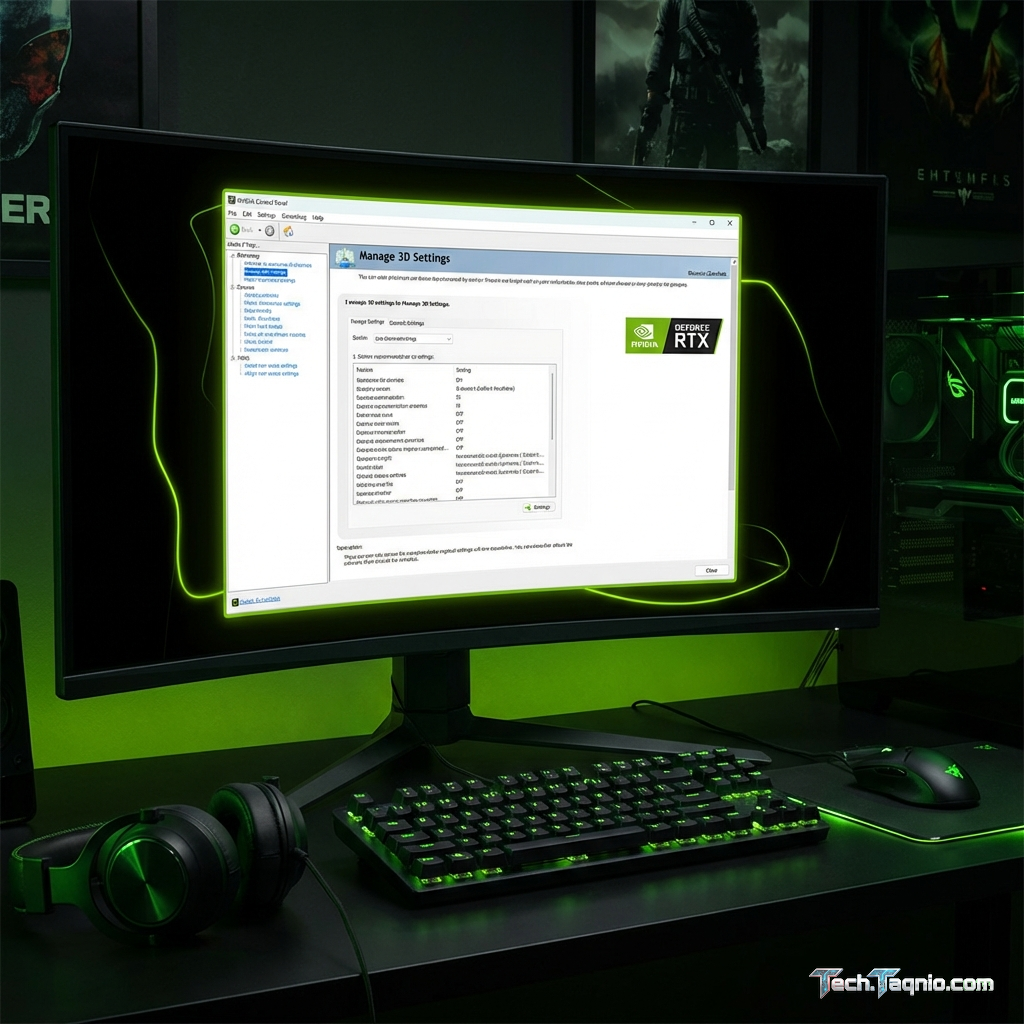
NVIDIA Control Panel Settings
For NVIDIA GPUs, these Control Panel settings optimize gaming performance:
Access: Right-click desktop → NVIDIA Control Panel → Manage 3D settings
Recommended Global Settings:
- Power management mode: Prefer maximum performance
- Texture filtering – Quality: High performance
- Low Latency Mode: On or Ultra (for competitive gaming)
- Threaded Optimization: Auto
- CUDA – GPUs: Select all GPUs
Leave other settings at default unless troubleshooting specific issues. Per-game profiles can override global
settings for titles needing specific configurations.
AMD Radeon Software Settings
For AMD GPUs, configure these settings in Radeon Software:
Access: Right-click desktop → AMD Software: Adrenalin Edition → Gaming
Recommended Settings:
- Anti-Lag: Enabled (reduces input latency)
- Radeon Boost: Enabled (optional—dynamically adjusts resolution)
- Image Sharpening: Enabled at 80% (enhances lower-resolution sharpness)
- Wait for Vertical Refresh: Off, unless application specifies (disabled by default)
IV. Background Process Management
Background processes consume resources that could serve gaming. Strategic management improves performance
consistency.
Identify Resource-Heavy Processes
Task Manager reveals which processes consume significant resources:
- Open Task Manager (Ctrl + Shift + Esc)
- Click “More details” if in simple view
- Sort by CPU, Memory, or GPU to identify heavy processes
- Research unknown processes before disabling
Common resource-heavy programs include: browser tabs, cloud sync services (OneDrive, Dropbox), creative applications,
and background updaters. Close unnecessary applications before gaming sessions.
Disable Unnecessary Services
Some Windows services provide minimal benefit while consuming resources. Disable only services you understand and
genuinely don’t need:
Commonly safe to disable:
- Print Spooler: If you don’t print
- Fax: If you don’t fax
- Remote Registry: If you don’t need remote access
- Bluetooth Support Service: If not using Bluetooth
Do NOT disable: Security services, system-critical services, or services you’re unsure about.
Disabling essential services can cause system instability.
Disable Transparency Effects
Windows transparency effects consume GPU resources for visual styling. Disabling provides minor performance
improvement:
- Open Settings → Personalization → Colors
- Toggle “Transparency effects” OFF
The visual difference is noticeable but the performance impact is minor on modern systems. Users preferring visual
appeal may keep transparency enabled.
V. Network Optimization for Gaming
Network configuration affects online gaming latency and connection stability.
Use Wired Connection
Ethernet connections provide lower latency and more consistent connections than WiFi. For competitive online gaming,
wired connections are strongly recommended.
If WiFi is necessary, use 5GHz band for lower interference and consider WiFi 6E for best wireless gaming performance.
Disable Network Throttling
Windows includes network throttling that can impact gaming:
Registry modification (advanced):
- Open Registry Editor (Win + R, type “regedit”)
- Navigate to: HKEY_LOCAL_MACHINESOFTWAREMicrosoftWindows NTCurrentVersionMultimediaSystemProfile
- Find “NetworkThrottlingIndex” and set to ffffffff (DWORD)
- Restart computer
This removes the default network throttling that Windows applies to multimedia applications. The change primarily
benefits streaming and high-bandwidth games.
Configure Router QoS
Quality of Service (QoS) settings on your router can prioritize gaming traffic over background downloads. Access your
router’s administration interface (typically 192.168.1.1 or 192.168.0.1) and look for QoS settings to prioritize
your gaming PC’s traffic.
VI. Storage Optimization
Storage performance affects game load times and texture streaming.
Enable Write Caching
Write caching improves storage performance at slight data loss risk during power failures:
- Open Device Manager
- Expand “Disk drives”
- Right-click your game drive → Properties
- Go to Policies tab
- Enable “Better performance” and write caching
Use UPS or reliable power supply when enabling write caching to prevent data loss from power interruptions.
Verify TRIM for SSDs
TRIM maintains SSD performance over time. Verify it’s enabled:
- Open Command Prompt as Administrator
- Run: fsutil behavior query DisableDeleteNotify
- If result shows 0, TRIM is enabled (good)
- If result shows 1, TRIM is disabled—enable with: fsutil behavior set DisableDeleteNotify 0
Defragment HDDs Only
Defragmentation helps hard drives but should NOT be performed on SSDs. Windows 11 automatically optimizes drives
appropriately—verify settings:
- Search “Defragment and Optimize Drives”
- Verify your SSD shows “OK” status (trimmed automatically)
- Verify any HDDs are scheduled for regular defragmentation
VII. Virtual Memory Configuration
Virtual memory (page file) serves as overflow when RAM fills. Proper configuration prevents performance issues.
Set Custom Page File
For systems with 16GB+ RAM, manual configuration may improve performance:
- Open System Properties → Advanced → Performance Settings
- Advanced tab → Virtual memory → Change
- Uncheck “Automatically manage paging file size”
- Select your fastest drive (SSD preferred)
- Set custom size: Initial = 1.5x RAM, Maximum = 3x RAM
- Click Set → OK → Restart
For 32GB+ RAM systems, smaller page files (8-16GB) usually suffice. Never disable the page file entirely—some games
require it regardless of available RAM.
VIII. What NOT to Do
Avoid these commonly recommended “optimizations” that provide no benefit or cause problems:
Don’t Disable Windows Security
Windows Defender’s performance impact is minimal on modern systems. Disabling security creates significant
vulnerability for negligible gaming benefit. Keep security enabled.
Don’t Use “Gaming Optimizer” Software
Most third-party “game booster” applications provide placebo effects while potentially causing system issues. The
changes they make are either already optimal, not beneficial, or can be done manually without additional software.
Don’t Modify Settings You Don’t Understand
Random registry edits, service modifications, and “tweaks” found online often cause more problems than they solve.
Only modify settings you fully understand.
IX. Conclusion
Windows 11 gaming optimization focuses on removing artificial limitations rather than achieving magical performance
gains. The most impactful optimizations—power plan configuration, GPU driver updates, and background process
management—establish consistent performance by eliminating potential bottlenecks.
Essential optimizations include: enabling High Performance power plan, updating GPU drivers, configuring Game Mode
appropriately, disabling unnecessary startup programs, and ensuring HAGS is enabled. These changes provide
measurable benefits with minimal risk.
Avoid falling into the optimization rabbit hole where diminishing returns consume time for negligible gains. After
implementing essential optimizations, the best performance improvement comes from hardware upgrades rather than
increasingly obscure software tweaks.
For complete gaming guidance, explore our articles on NVIDIA Control Panel optimization and best gaming SSDs for 2026.