Input lag—the delay between your physical input and the corresponding on-screen response—directly impacts gaming
performance, particularly in competitive titles where milliseconds matter. From the moment you click your mouse to
when that action appears on screen, multiple factors contribute to total system latency. Understanding and
optimizing each component in the latency chain provides meaningful competitive advantage.
Professional players obsess over latency optimization because even small improvements cumulate into noticeable
responsiveness. Reducing system latency from 50ms to 30ms doesn’t just improve feel—it provides a genuine time
advantage in reaction-based scenarios.
This comprehensive guide covers every aspect of input lag reduction, from hardware choices to software configuration.
We’ll identify the biggest latency contributors in typical gaming systems and provide actionable optimization
strategies for each.
I. Understanding Input Lag
Before optimizing, understanding what contributes to total system latency helps prioritize efforts effectively.
The Latency Chain
Total input lag consists of multiple sequential delays:
- Peripheral Latency (1-10ms): Time for mouse/keyboard to detect input and send signal to PC
- USB Polling (0.125-8ms): Frequency at which PC reads input devices
- Game Processing (variable): Time for game engine to process input and calculate frame
- Render Time (6-17ms at 60-165Hz): Time GPU takes to render frame
- Render Queue (0-30ms+): Frames waiting in GPU queue before display
- Display Processing (1-20ms): Monitor’s internal processing time
- Panel Response (1-5ms): Pixel transition time
Each component in this chain contributes to total latency. Optimizing any component reduces overall delay.
Measuring Input Lag
Several methods measure system latency:
NVIDIA Reflex Latency Analyzer: Measures click-to-display latency with compatible monitors and mice.
Most accurate consumer-available measurement.
NVIDIA FrameView/AMD Radeon Software: Reports estimated PC + Display latency based on internal
measurements.
High-Speed Camera: The traditional method—film input device and screen at 240+ FPS, count frames
between input and screen change.
II. Monitor Optimization
The monitor typically contributes 5-25ms of latency depending on model and settings—one of the largest single
contributors.
Refresh Rate
Higher refresh rates reduce the time between frame display opportunities:
- 60Hz: 16.67ms between frames
- 144Hz: 6.94ms between frames
- 240Hz: 4.17ms between frames
- 360Hz: 2.78ms between frames
The refresh rate establishes the minimum possible display latency—you cannot display a new frame faster than your
monitor refreshes. For competitive gaming, 144Hz minimum is recommended, with 240Hz+ providing additional
responsiveness.
Enable Game Mode
Most monitors include a “Game Mode” or “Low Latency” mode that reduces internal processing (scaling, filters) for
lower latency. Enable this mode for gaming—visual processing features add delay without meaningful benefit during
fast-paced gaming.
Disable Unnecessary Features
Monitor features that add processing and latency:
- Motion Blur Reduction/ELMB: Useful for clarity but may add latency on some monitors
- Dynamic Contrast: Analyzes image and adjusts backlight—adds processing delay
- Overdrive (extreme settings): High overdrive can cause inverse ghosting; use moderate settings
- HDR (on some monitors): May add processing; test with and without
Monitor Response Time
Response time (GtG or MPRT) measures how quickly pixels change color. While marketing claims of “1ms” are common,
actual response varies:
- Fast IPS: 3-5ms typical GtG
- VA: 5-10ms typical GtG
- TN: 1-3ms typical GtG
- OLED:
<0.5ms (nearly instantaneous)
Response time contributes less to perceived latency than refresh rate but still matters for motion clarity.
III. GPU and Render Settings
GPU configuration significantly impacts render latency—how quickly frames are produced and queued for display.
Enable Low Latency Mode
Both NVIDIA and AMD provide render queue management:
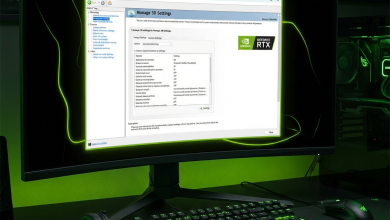
NVIDIA Low Latency Mode (Control Panel):
- Off: Maximum pre-rendered frames (higher latency, potentially smoother when GPU-bound)
- On: Limits queue to 1 frame
- Ultra: Just-in-time frame submission, minimum latency
AMD Anti-Lag (Radeon Software):
- Reduces render queue similarly to NVIDIA’s implementation
- Anti-Lag+ (RDNA 3) integrates deeper for additional reduction
For competitive gaming, enable these features. If GPU-bound and experiencing stuttering, reduce aggressiveness.
NVIDIA Reflex
NVIDIA Reflex provides the lowest latency when available in games. Reflex allows the game engine and driver to
synchronize precisely, minimizing render queue and CPU-GPU synchronization delays.
Reflex settings:
- On: Reduces latency with minimal CPU overhead
- On + Boost: Additionally prevents GPU clocks from dropping during CPU-bound periods
When available, Reflex supersedes Control Panel Low Latency Mode for that specific game.
Match Frame Rate to Refresh Rate
Running at exactly your refresh rate (or just below for G-Sync/FreeSync) provides consistent frame pacing:
- Enable G-Sync/FreeSync for tear-free gaming
- Cap frame rate 3-4 FPS below monitor refresh rate
- Use RTSS for precise, consistent frame limiting
This keeps you within variable refresh range with consistent frame delivery.
Disable V-Sync When Possible
Traditional V-Sync adds significant latency—typically one full frame (6-17ms depending on refresh rate). If using
G-Sync/FreeSync, disable V-Sync in driver while optionally enabling in-game V-Sync as a frame cap.
Without adaptive sync, accept some tearing for lower latency or use “Fast Sync” (NVIDIA) / “Enhanced Sync” (AMD) for
reduced latency versus traditional V-Sync.
IV. Peripheral Optimization
Input devices contribute the first portion of the latency chain.
Mouse Configuration
Polling Rate: Higher polling rates reduce USB communication delay:
- 125Hz: 8ms maximum delay
- 500Hz: 2ms maximum delay
- 1000Hz: 1ms maximum delay
- 4000-8000Hz: 0.125-0.25ms maximum delay
Use 1000Hz minimum for gaming. Newer mice offering 4000Hz+ provide minor additional improvement—significant mostly
for professional-level play.
Wired vs Wireless: Modern wireless gaming mice (Logitech Lightspeed, Razer HyperSpeed, etc.) match
or approach wired latency. Old or budget wireless mice may add noticeable delay—use wired or modern gaming wireless.
DPI and Polling Combination: Set appropriate DPI for your sensitivity preference. Polling rate
matters more than DPI for latency purposes.
Keyboard Configuration
Polling Rate: Same principles as mice—use 1000Hz when available.
N-Key Rollover: Ensures all simultaneous key presses register. Important for complex inputs rather
than latency specifically.
Key Switch Type: Mechanical switches (especially linear or speed switches) provide faster actuation
than membrane keyboards. The difference is milliseconds but contributes to overall responsiveness.
USB Connection
Connect gaming peripherals directly to motherboard USB ports rather than hubs when possible. USB hubs can add minor
latency, and motherboard ports ensure clean power delivery.
V. Software Optimization
Operating system and software configuration impacts how quickly inputs are processed.
Windows Game Mode
Enable Windows Game Mode to prioritize gaming processes and prevent background activity from interrupting gameplay:
- Settings → Gaming → Game Mode
- Toggle Game Mode On
Disable Full-Screen Optimizations
Windows’ full-screen optimization can add latency. Disable for competitive games:
- Right-click game executable → Properties
- Compatibility tab
- Check “Disable fullscreen optimizations”
This forces true exclusive full-screen mode with lower latency than windowed/borderless.
Hardware-Accelerated GPU Scheduling (HAGS)
HAGS allows GPU to manage its memory scheduling, potentially reducing latency:
- Settings → System → Display → Graphics
- Change default graphics settings
- Toggle Hardware-accelerated GPU scheduling On
Most modern systems benefit from HAGS. Test if you notice any issues.
Close Background Applications
Background processes compete for CPU time, potentially introducing micro-delays in input processing. Close
unnecessary applications before competitive gaming.
VI. In-Game Settings
Game configuration directly impacts render time and input processing.
Reduce Visual Settings
Lower settings produce faster frame times, reducing render latency:
- Lower resolution or use DLSS/FSR Performance mode for faster rendering
- Reduce shadow quality, effects, and view distance
- Disable motion blur (adds processing, obscures visual feedback)
- Disable depth of field (adds processing)
Competitive players often run reduced settings even on capable hardware specifically for latency reduction.
Match Settings to Consistent FPS
Consistent frame times are as important as high FPS. If your system alternates between 200 and 120 FPS, the
experience feels worse than stable 144 FPS. Configure settings that maintain consistent performance.
Enable Game-Specific Latency Features
Many competitive games include latency reduction options:
- NVIDIA Reflex (when available)
- AMD Anti-Lag+ (when available)
- Reduce buffering options
- Favor low latency over stable FPS options
VII. Latency Comparison Table
| Factor | Typical Latency | Optimization Impact |
|---|---|---|
| 60Hz vs 240Hz Monitor | 16.7ms vs 4.2ms per frame | -12.5ms |
| V-Sync Off vs On | 0ms vs 6-17ms | -6 to -17ms |
| NVIDIA Reflex Enabled | Variable | -10 to -30ms typical |
| Low Latency Mode (Ultra) | Variable | -5 to -15ms typical |
| 125Hz vs 1000Hz Polling | 8ms vs 1ms | -7ms max |
| Monitor Game Mode | Variable | -5 to -15ms typical |
VIII. Network Latency (Online Games)
For online gaming, network latency (ping) adds to local system latency.
Reduce Network Latency
- Use Ethernet: Wired connections provide lower, more consistent latency than WiFi
- Select Nearby Servers: Physical distance affects ping
- Close Background Downloads: Bandwidth competition increases latency variability
- QoS Configuration: Prioritize gaming traffic on your router
Network Latency Expectations
- <20ms: Excellent, localized servers
- 20-50ms: Good, regional servers
- 50-100ms: Playable, distant servers
- 100ms+: Noticeable delay, long-distance
IX. Conclusion
Input lag reduction requires attention across the entire system—from peripherals to monitor. The largest gains
typically come from high refresh rate monitors, disabling V-Sync (with adaptive sync), and enabling technologies
like NVIDIA Reflex or Low Latency Mode.
Prioritize optimizations by impact: monitor refresh rate and settings provide the most significant improvements,
followed by render queue management (Reflex/Low Latency Mode), then peripheral and software optimization.
For competitive gaming, combine: high refresh rate monitor (144Hz+), enable Game Mode on monitor, use NVIDIA Reflex
or Low Latency Mode Ultra, ensure 1000Hz polling on peripherals, and disable V-Sync (use G-Sync/FreeSync instead).
This combination minimizes system latency and maximizes your competitive responsiveness.
For complete gaming guidance, explore our articles on best gaming monitors for
competitive gaming and NVIDIA Control Panel
optimization.