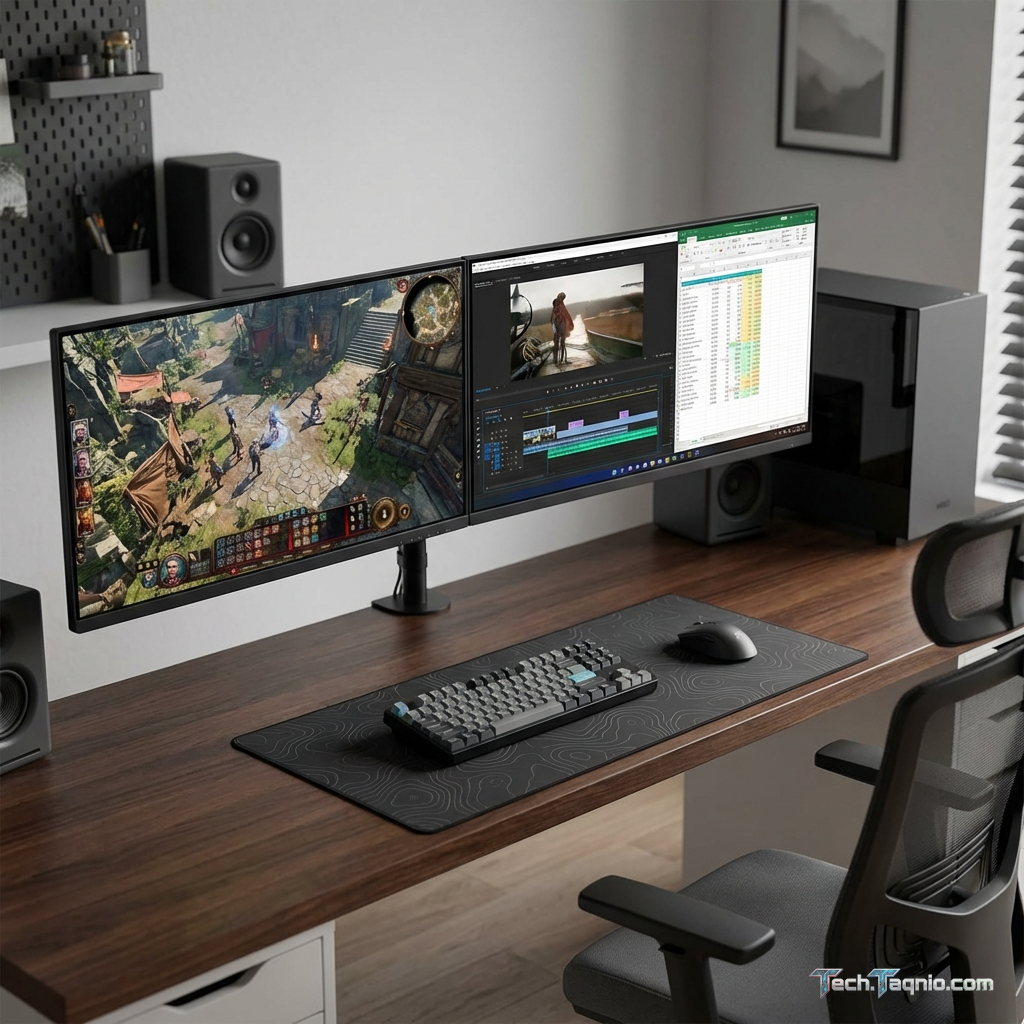
Dual monitor configurations transform gaming experiences beyond simple screen expansion. A secondary display enables
chat monitoring during streams, guide reference during complex games, system monitoring during performance tuning,
and productivity workflows between gaming sessions. Understanding optimal configuration maximizes dual monitor
benefits while avoiding common pitfalls.
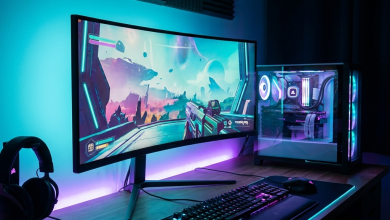
Two-monitor setups serve different purposes than ultrawide single displays. While ultrawides provide seamless
widescreen immersion, dual monitors offer discrete functional zones—gaming on one, secondary tasks on another. This
separation proves advantageous for streamers, content creators, and multitaskers who benefit from dedicated utility
space.
This comprehensive guide covers dual monitor setup optimization for gaming and productivity in 2026.
I. Planning Your Dual Monitor Configuration
Successful dual monitor integration requires thoughtful planning before purchase and installation.
Primary vs Secondary Monitor Roles
Primary Display (Gaming/Focus):
- Highest quality panel for primary content consumption
- Best refresh rate for gaming smoothness
- Fastest response time for competitive advantage
- Central viewing position for comfort
Secondary Display (Utility):
- Adequate quality for non-critical viewing
- 60Hz sufficient for static content
- Response time largely irrelevant
- Positioned for glanceable reference
Investing in primary display quality matters significantly more than secondary display specifications. Budget
asymmetry focusing resources on main display typically produces better results than evenly splitting toward two
mid-range monitors.
Size and Resolution Matching
Matching monitor sizes creates visual cohesion; mismatched sizes function but appear awkward. Common configurations
include:
Matched 27-inch Pair: Popular balanced configuration providing equivalent visual weight and seamless
appearance. Ideal for those valuing symmetry.
Primary 27-inch + Secondary 24-inch: Main display gains prominence while secondary provides utility
without dominating desk space. Works well for asymmetric desk layouts.
Primary 32-inch + Secondary 27-inch: Large primary for immersive gaming with substantial secondary
for serious productivity multitasking.
Resolution considerations: Mismatched resolutions cause cursor-jump issues when transitioning
between displays. Windows handles this through scaling but imperfect solutions exist. Matching resolutions
eliminates potential frustration.
Panel Technology Considerations
Viewing angle matters more for secondary monitors than primary displays, as secondary screens often sit at oblique
angles.
Primary Monitor: Choose optimal gaming panel—IPS for color, VA for contrast, OLED for both. Direct
viewing minimizes angle concerns.
Secondary Monitor: IPS recommended for off-axis visibility. VA and TN panels experience significant
color shift at typical secondary monitor viewing angles.
II. Physical Setup and Ergonomics
Proper physical configuration prevents strain and maximizes usability.
Positioning Options
Side-by-Side Horizontal: Most common arrangement with monitors adjacent at equal height. Primary
display centered, secondary offset to preferred side (typically non-dominant hand side for mouse-hand ergonomics).
Angled Configuration: Secondary monitor angled 15-30° toward user position, reducing neck rotation
needed for viewing. More ergonomic for frequent secondary glances.
Stacked Vertical: Secondary monitor mounted above primary using monitor arms. Preserves horizontal
desk space while maintaining utility access. Less common but effective for specific workflows.
Portrait Secondary: Secondary monitor rotated 90° for vertical content—code, documents, chat
windows. Excellent for productivity; less useful for gaming utility.
Monitor Arms and Stands
Monitor arms dramatically improve dual monitor flexibility:
- Reclaim desk space occupied by large stands
- Enable precise height and angle adjustment
- Allow pushing displays back for increased viewing distance
- Facilitate easy repositioning as needs change
Dual monitor arms mount both displays from single desk clamp, coordinating adjustment and maintaining alignment.
Single arms for each monitor offer independent positioning flexibility at increased desk clutter cost.
Cable Management
Dual monitors double cable complexity. Planning cable routing during setup prevents later frustration:
- Route cables behind monitor arms when possible
- Use cable raceways or channels for desk-to-PC runs
- Consider USB-C connections reducing cable count where supported
- Label cables at both ends for future identification
III. Configuring Windows for Dual Monitors
Proper Windows configuration ensures seamless dual monitor operation.
Display Settings Setup
Access Windows display settings (right-click desktop → Display Settings) to configure:
Monitor Arrangement: Drag monitor icons to match physical positioning. Proper arrangement ensures
cursor transitions naturally between displays.
Primary Display Selection: Designate main gaming monitor as primary display. Taskbar, new windows,
and games default to primary display.
Refresh Rate Configuration: Set each monitor to optimal refresh rate independently. Secondary
displays maintaining 60Hz reduces GPU resource usage.
Resolution and Scaling: Configure resolution and Windows scaling per-monitor. Different DPI displays
may require different scaling percentages.
Gaming-Specific Settings
Disable fullscreen on secondary: Most games target primary display correctly, but verify in game
settings that correct monitor receives fullscreen focus.
Borderless windowed mode: Many games run best in borderless windowed for dual monitor
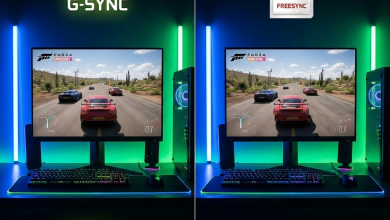
setups—fullscreen performance with easy alt-tab access to secondary display. Note: G-Sync/FreeSync may not function
in borderless mode on some configurations.
Hardware cursor: Enable hardware cursor in games for smooth cursor transitions. Software cursors may
lag when moving between displays.
GPU Configuration
Configure NVIDIA Control Panel or AMD Radeon Settings for optimal dual-monitor behavior:
- Set primary display as preferred GPU display
- Configure G-Sync/FreeSync for primary monitor only
- Verify both monitors detected and configured correctly
- Set power management to prefer maximum performance if secondary causes power-state issues
IV. Dual Monitor Use Cases
Streaming Setup
Secondary displays prove invaluable for streaming:
- OBS Studio controls and preview
- Chat window visibility during gameplay
- Alert notifications and donation tracking
- Stream analytics and viewer statistics
- Discord or communication applications
Position streaming elements on secondary display in consistent locations for muscle-memory glance access during
gameplay. Avoid placing critical timing-sensitive information on secondary display requiring extended attention
shifts.
Competitive Gaming Enhancement
Even competitive gamers benefit from secondary displays:
- Discord voice channels with team information
- Strategy guides or map references
- System monitoring during performance optimization
- Scoreboard or statistics tracking
Productivity Integration
Gaming-ready dual setups transition seamlessly to productivity:
- Reference documents alongside primary work
- Video content during research or study
- Communication apps without tab switching
- System monitoring during intensive tasks
V. Common Issues and Solutions
Performance impact from secondary display: Animated content on secondary monitors consumes GPU
resources. Close or minimize intensive secondary content during demanding games. Hardware-accelerated video playback
on secondary display particularly impacts performance.
Focus stealing: Secondary display notifications interrupting games can be mitigated through Windows
Focus Assist settings or application-specific notification disabling.
Cursor wandering: Cursor accidentally moving to secondary display during gameplay frustrates many
users. Third-party utilities like “Cursor Lock” can constrain cursor to primary display during games.
Refresh rate conflicts: Mixed refresh rate systems occasionally experience stuttering. Ensure GPU
drivers properly handle different refresh rates—update to latest drivers if issues occur.
VI. Comparison: Dual Monitors vs Ultrawide
VII. Conclusion
Dual monitor setups enhance gaming workflows when properly configured. Streaming, competitive gaming with reference
access, and seamless productivity transitions benefit from dedicated secondary display space. Successful
implementation requires thoughtful planning of monitor specifications, physical positioning, and software
configuration.
Invest primarily in primary display quality while accepting adequate secondary specifications. Position monitors
ergonomically with consideration for typical viewing patterns. Configure Windows and GPU settings for optimal
dual-monitor behavior. Address common issues proactively to enjoy seamless multi-display gaming.
For related content, see our monitor size guide and budget monitor
recommendations.